1. Introduction to PTCL Online Payment System
Pakistan Telecommunication Company Limited (PTCL) is the backbone of the national telecommunications infrastructure providing a range of services from traditional PSTN landline connections to high speed copper broadband (DSL), CharJi wireless LTE and modern fiber to the home (FTTH) Flash Fiber internet. Monthly utility bills used to be paid through visits to commercial banks, post offices or PTCL One-Stop Shops. PTCL’s digital integration with Pakistan’s financial ecosystem enables 100% remote, instant bill payments today.
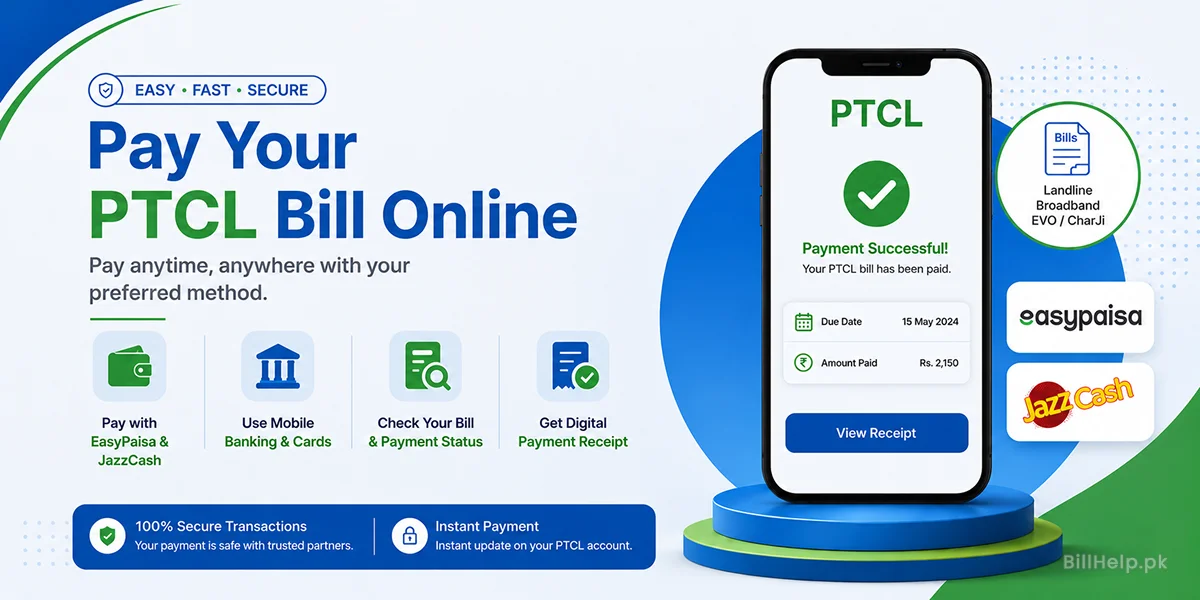
Regardless of the digital wallet application, be it EasyPaisa, JazzCash, Nayapay or SadaPay, or the internet banking portals offered by commercial banks (HBL, Meezan Bank, Bank Alfalah, UBL or MCB) paying your PTCL invoice will take less than 2 minutes. This comprehensive guide covers all the different ways you can make digital transactions, how to find important account numbers, how to confirm that your payment has gone through successfully and what to do if you have any unusual billing problems.
2. Locating Your PTCL Account Identification Details
I want to help you locate your PTCL Account Identification Details before you start any payment. You must locate the billing parameters. If you enter an ID the payment may fail or the money may be sent to the wrong account.
Key Billing Identifiers Defined
- Account ID (10 Digits): This is your static account identification number given by PTCL. PTCL keeps this number the same even if you change your address or phone number. Most mobile wallets and banking apps need this 10‑digit number.
- Consumer ID / Bill ID: This is a sequence that appears in the top right corner of your paper bill or duplicate e‑Bill. Some financial platforms use Consumer ID the way they use Account ID.
- Landline Number With Area Code: Your landline connection number along with the area STD code (e.g. 051 for Islamabad/Rawalpindi, 042 for Lahore, 021 for Karachi). In banking portals, enter phone numbers without the leading zero if app’s formatting rules specify.
- Pro Tip:Where do I get these IDs? You can view your full billing credentials on the top right section of your physical paper bill, open your PTCL E-Bill PDF, log in to the official PTCL Touch App or go to
dbill.ptcl.net.pk.
3. Method 1: Payment via EasyPaisa (App & USSD)
Among the most accessible mobile wallets in Pakistan is EasyPaisa. This is because there are two ways to make the payment using a mobile phone either with an app or by USSD code.
- Access the EasyPaisa mobile app installed in your mobile phone. Sign in using your account PIN or use verification.
- On the home screen of the EasyPaisa app tap the Bill Payment icon.
- Choose Telephone or Broadband from the list of utility categories shown in the EasyPaisa app.
- Pick PTCL from the list of service providers, in the EasyPaisa app.
- Select the PTCL sub‑service type you need for example PTCL Landline & Broadband or PTCL EVO/CharJi.
- Enter your 10‑digit Account ID or Consumer ID into the EasyPaisa app.
- Tap Next. The EasyPaisa app will pull your real‑time billing details from servers showing the account owner name, due date and the exact amount you must pay.
- Check that the information matches your invoice then press Pay to complete the payment.
- Take a picture. Save the digital receipt that has the Transaction ID (TRX ID).
- From your Telenor SIM card that is registered dial
*786#. - Reply with 2 to Pay Bills.
- Select Telephone/Broadband.
- Choose PTCL from the company list.
- Enter your 10-digit Account ID.
- Verify the amount of the bill displayed in the phone screen.
- Enter your 5 digits EasyPaisa Secret PIN in order to confirm the transaction.
- You will get a message containing the transaction approval code on your mobile phone.
4. Method 2: Payment via JazzCash (App & USSD)
JazzCash is another option to pay PTCL landline, broadband and EVO bills.
- Launch the JazzCash App. Enter your 4-digit MPIN or use Touch ID.
- Tap on Pay Bills, on the menu dashboard.
- Select Telephone or Broadband.
- Tap on PTCL.
- Enter your 10-digit Account ID or Landline Number including area code.
- The app displays consumer details, due date and payable amount.
- Check the billing name and total amount due.
- Tap Confirm Payment. Enter your 4-digit MPIN.
- Download the payment receipt. Take a screenshot for your records.
- From your registered Jazz SIM card dial
*786#. - Select 1. Pay Bills.
- Select Telephone and choose PTCL.
- Enter your Account ID.
- Confirm the bill summary displayed on screen.
- Please enter your 4-digit JazzCash MPIN to confirm your transaction.
5. Method 3: Mobile Banking Apps & Debit/Credit Cards
All commercial banks that are part of the State Bank of Pakistan’s 1LINK network allow free-of-charge bill payments, for PTCL. The major banks that support this service include Habib Bank Limited (HBL) Meezan Bank, Bank Alfalah, Allied Bank (ABL) United Bank Limited (UBL) MCB and Faysal Bank.
Mobile Banking General Workflow
- Login to your bank’s mobile application (e.g. HBL Mobile, Meezan Digital, Alfa etc).
- Click Bill Payments or Utility Payees.
- Tap Add New Payee or Bill Management.
- Choose PTCL (Landline & Broadband) or PTCL EVO/CharJi.
- Enter your 10 digit Consumer ID / Account ID.
- The banking app will display your account information and your balance.
- Save payee profile for fast single-click payments in the following months.
- Select the account to be debited, enter the OTP (One-Time Password) received on your mobile/email and confirm the transaction.
Pay By Visa/Mastercard on PTCL Official Website
If you’d prefer to pay direct by Visa or Mastercard debit or credit card, without logging into a banking app:
e-payment.ptcl.net.pkis the official PTCL E-Payment portal.- Select your service type (Landline/Broadband or EVO/CharJi).
- Enter your Telephone Number (with area code) and Account ID.
- Click Fetch Bill Details.
- Select Credit / Debit Card as your payment gateway.
- Enter your 16 digit card number, expiration date and 3 digit CVV code on the back of your card.
- Complete the 2FA verification step for 3D-Secure that your issuing bank sends you.
- Authorized successfully, a digital receipt will be generated online immediately.
6. Alternative & Offline Payment Centers
But for speed and confirmation we recommend digital options, however PTCL does support traditional over the counter payments across Pakistan:
| Payment Channel | Method / Type | Processing Time | Receipt Type |
|---|---|---|---|
| Commercial Bank of Ceylon Branches | Over-the-counter cash deposit at HBL, UBL, MCB, ABL, Meezan, etc. | Same day or next business day | Stamped physical paper bill counterfoil |
| Bank ATMs | Card-based 1LINK bill payment menu at any bank ATM machine | Instant (Instant 15 minutes or less) | Printed ATM receipt slip |
| Pakistan Post Office | Payment in cash at nominated Post Offices | 1 to 2 business days | Physical post office stamp & receipt |
| PTCL Joint Shops / OS3 | Self-service payment kiosks or customer service desks | Instant | Digital kiosk receipt |
| Retail Outlets (Telenor/Jazz Agents) | Over-the-counter agent deposit via EasyPaisa/JazzCash agent accounts | Instant | Confirmation SMS from agent |
7. Online PTCL Bill Payment Status Track
When you make an online payment it is very important to check that PTCL billing engine has changed your account status from “Unpaid” to “Paid”.
Method A: Checking via PTCL DBill Portal
- Open your web browser. Go to
dbill.ptcl.net.pk. - Select your service (Landline or EVO).
- Enter your Phone Number (without leading zero) and your Account ID.
- Click Search.
- The web dashboard will show your current bill status. If the bill is paid the badge will turn PAID in green. Will list the payment date and the receipt reference code.
Method B: Checking via PTCL Touch Mobile App
- Download the PTCL Touch App from the Google Play Store or the Apple App Store then open it.
- Log in using your phone number or account credentials.
- Tap on Bill Details.
- Your billing history, your current bill status and your past digital transaction records will appear instantly.
8. Learn about your PTCL Bill, Charges & Taxes
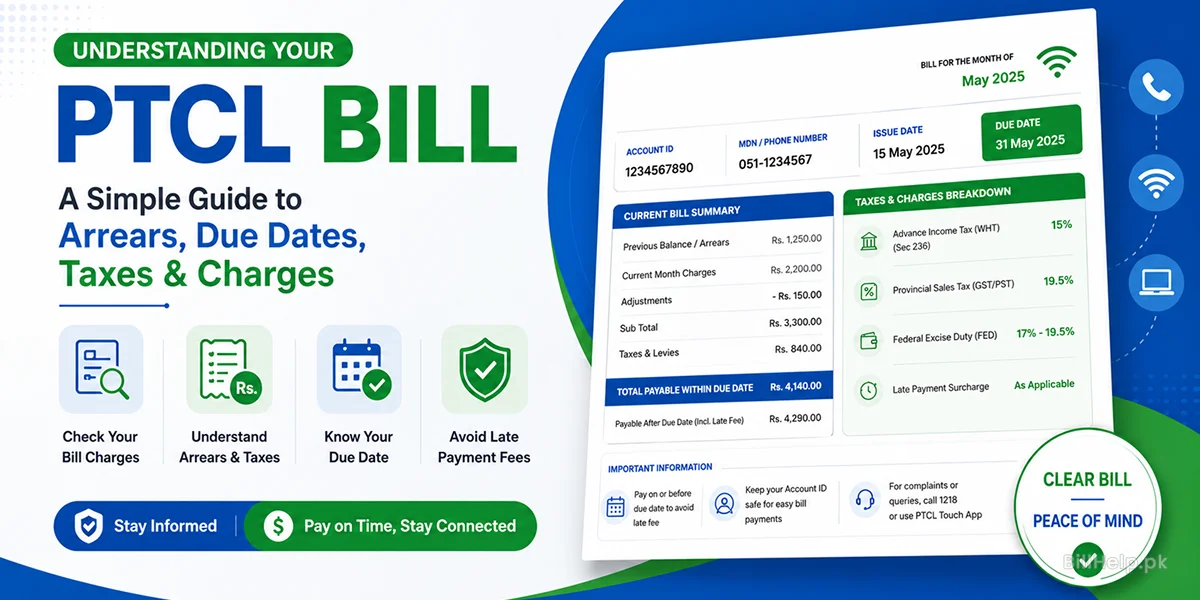
PTCL monthly invoices have a number of standard components, service charges and government levies. Knowing what these entries mean can help keep you from being confused on your bill:
- Monthly Subscription Charges: A fixed recurring charge based on the package you have chosen (e.g. 20 Mbps Unlimited Broadband, 100 Mbps Flash Fiber or Landline Freedom Package).
- Landline Line Rent: This is the monthly charge for keeping the PSTN copper line connected and working properly.
- VAS (Value Added Services): VAS or Value Added Services are charges, for optional features. They include PTCL Smart TV, CLI (Caller Line Identification) static IP allocation and international call packages.
- Arrears / Previous Balance: This is any money that was not paid in the billing cycle. If you paid your bill after the due date it might show up as arrears for a short time.
- Advance Income Tax (WHT): This is a tax taken out from your bill under Section 236 of the Income Tax Ordinance. Active taxpayers who have a Filer status, on FBR ATL can get this tax back. Use it when they file their taxes each year.
- Sales Tax / GST: Provincial Sales Tax (PST) on services. In Punjab the tax is PRA. In Sindh the tax is SRB. In KPK the tax is KPRA. In Balochistan the tax is BRA. The rate is, between 19.5% and 19.5% depending on service classification and region.
- Late Payment Surcharge: An extra penalty fee is added if the bill is paid after the official Due Date.
9. Troubleshooting Common Payment Problems & FAQs
Frequently Asked Questions
Q1: What should I do if my funds have been deducted from my bank/wallet?
Don't make a second payment immediately. The synchronization of the system between banking gateways and PTCL’s database may have slight delays. Let stand 2-4 hours. If the bill is still unpaid, contact your bank to verify that the transaction wasn't reversed. In case it is cleared, dial PTCL helpline at 1218 and provide your payment TRX ID for manual update of your record.
Q2: I lost the Internet connection because I did not pay the bill. How soon will service be restored if I pay online?
PTCL’s automated switch systems are normally able to restore internet and landline services within 10 to 30 minutes once the payment has been made online through EasyPaisa, JazzCash or online banking. If the router does not reconnect automatically, restart your modem/ONT box.
Q3: Can I pay my bill after due date through mobile banking or wallets?
Yes. The mobile app automatically calculates and adds the late payment surcharge after the date is missed. You can pay your bills electronically, without the need for a new paper invoice.
Q4: How to download PTCL Tax Deduction Certificate for filing tax return?
You can download your Withholding Tax Certificate by logging into PTCL official portal at ptcl.com.pk/TaxCertificate or through PTCL Touch app. This document is duly accepted by Federal Board of Revenue (FBR) for tax adjustments.
Q5: Is there any other charges or commission on paying PTCL bills online?
No. The payment of PTCL utility bills through EasyPaisa, JazzCash, 1LINK ATMs or mobile banking apps is absolutely free of consumer service charges.
10. PTCL Users Quick Link Directory
Check out our related comprehensive guides on BillHelp.pk to resolve other utility billing queries:
PTCL Online Bill Check Procedure
How to see, search and download your duplicate PTCL bill online.
How to Understand Your Bill Arrears & Charges
Detailed breakdown of PST, WHT, line rentals & overdue balance calculations.
Download PTCL Tax Certificate
Step-by-step instructions to obtain tax deduction receipts for FBR filers.
Flash Fiber Billing Guide
Everything you need to know about PTCL FTTH optical fiber connection billing.
Official sources to check:PTCL official website